
ChatGPT for Excel Formulas: 10 Useful Prompts and the Checks That Matter
Ten realistic Excel formula requests with examples, common errors and a safer way to use ChatGPT for spreadsheets.
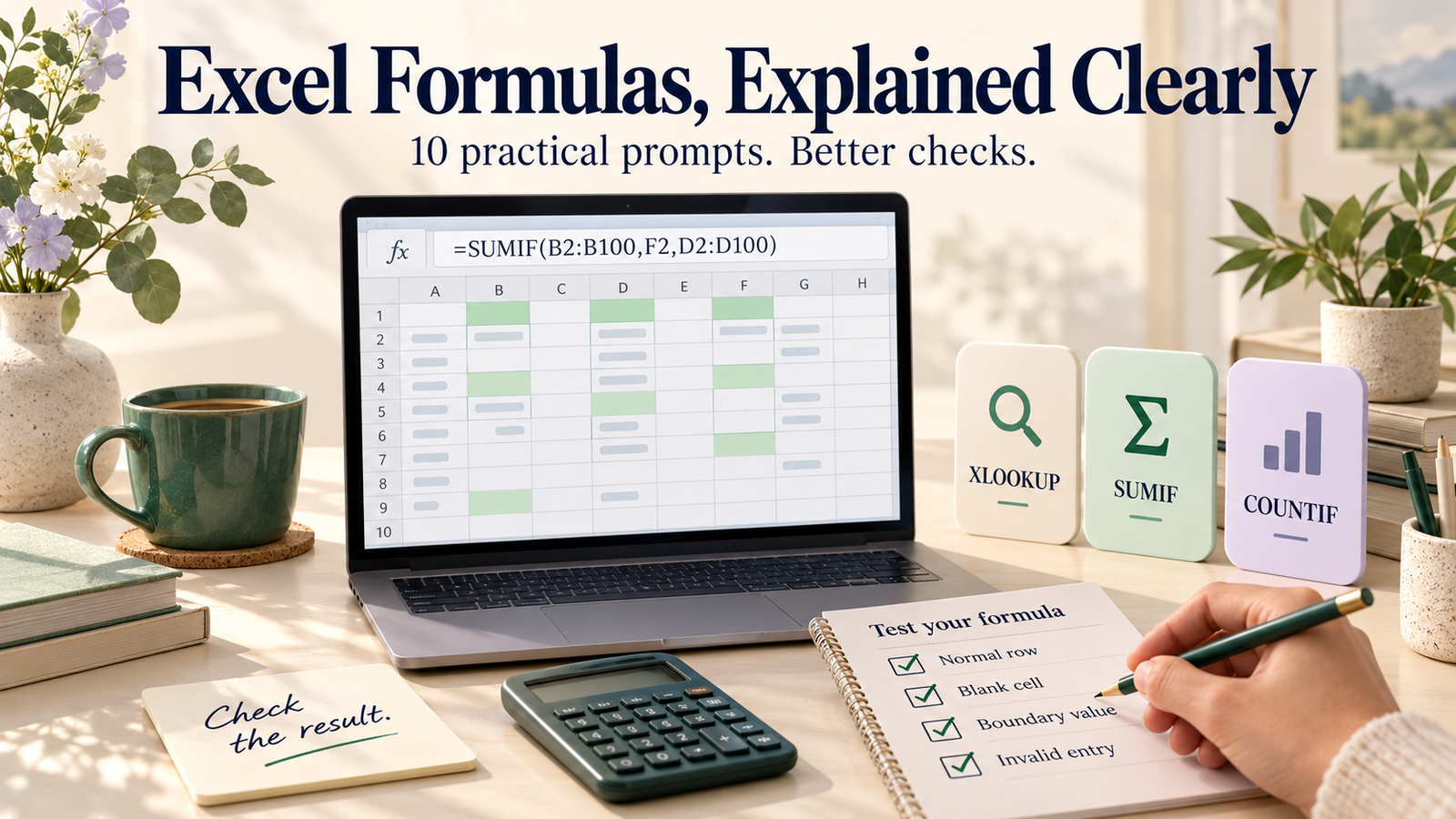
A spreadsheet formula can be technically valid and still give the wrong business answer. That's why asking AI for 'the Excel formula' is not quite enough. The better question is: which cells are involved, what should happen to blanks, and what counts as the correct result?
ChatGPT is useful as a formula assistant even when you do not have an AI feature built into Excel. Microsoft's own Copilot documentation describes generating and explaining formulas, while explicitly telling users to review AI-created results. That last part is worth remembering.
Before you paste a prompt, give Excel some structure
Describe the column headings and one or two sample rows. Say which Excel version you use when compatibility matters. State whether you need a formula for each row or a single summary cell. Do not paste customer spreadsheets or confidential employee details into a personal chat just to explain the columns. Invented sample records will usually work.
Here are ten reusable scenarios. These are illustrative formulas, not outputs tested against your workbook. Cell references must match your actual sheet.
1. Look up a product price
Prompt: 'I have product IDs in A2:A100. A master table has IDs in F2:F100 and prices in G2:G100. Give me a formula in B2 that returns the price for A2, or Not found.'
Example formula: =XLOOKUP(A2,$F$2:$F$100,$G$2:$G$100,"Not found")
Check: The ID column must not have accidental duplicates. If it does, XLOOKUP may return a result you did not expect. Also confirm numeric versus text IDs.
2. Sum sales for one region
Prompt: 'Region is in column B, order value in column D, and the region I want is in F2. Sum the matching orders.'
Example: =SUMIF($B$2:$B$100,F2,$D$2:$D$100)
Check: Are refunds negative? Does the report mean gross sales or net sales? The formula cannot decide that for you.
3. Count completed tickets
Prompt: 'Status is in C2:C500. Count entries marked Closed and ignore empty rows.'
Example: =COUNTIF(C2:C500,"Closed")
Check: Extra spaces or inconsistent labels such as 'Complete' will be missed. Standardise the status list.
4. Calculate month-over-month growth
Prompt: 'Previous month is in B2 and current month in C2. Give percentage growth, but show N/A when the previous month is zero.'
Example: =IF(B2=0,"N/A",(C2-B2)/B2)
Check: Format the result as a percentage. Don't quietly label a zero baseline as 0% growth; mathematically it is a different situation.
5. Mark overdue invoices
Prompt: 'Due date is D2, payment status is E2. Return Overdue only if the bill is not Paid and its due date is before today. Leave blank due dates blank.'
Example: =IF(D2="","",IF(AND(E2<>"Paid",D2<TODAY()),"Overdue","On track"))
Check: A due date stored as text may compare incorrectly. Verify real Excel dates and your definition of an overdue invoice.
6. Extract the part before an email's @ sign
Prompt: 'A2 contains an email address. Extract the text before @, but return blank for invalid rows.'
Example for modern Excel: =IFERROR(TEXTBEFORE(A2,"@"),"")
Check: Extracting a string is not the same as validating an email address. This formula does not prove a contact is real.
7. Combine a first and last name
Prompt: 'First name is A2 and surname is B2. Combine them without extra spaces if one is missing.'
Example: =TRIM(A2&" "&B2)
Check: Names are not universally two-part; don't force a name format onto imported customer data without considering the source.
8. Count orders between two dates
Prompt: 'Order dates are in column C. F2 is start date and G2 is end date. Count orders including both dates.'
Example: =COUNTIFS(C2:C500,">="&F2,C2:C500,"<"&(G2+1))
Check: The less-than-next-day approach handles timestamps as well as dates. Make sure F2 and G2 are real date cells.
9. Flag possible duplicates
Prompt: 'Order IDs are in A2:A500. Mark duplicates as Review, but leave empty IDs blank.'
Example: =IF(A2="","",IF(COUNTIF($A$2:$A$500,A2)>1,"Review",""))
Check: A repeated customer order may be legitimate. Flagging is not permission to delete data.
10. Categorise a value into bands
Prompt: 'A2 contains total spend. Classify amounts below 100 as Small, below 1000 as Medium, and anything else as Large. Make negative values invalid.'
Example: =IF(A2<0,"Check value",IF(A2<100,"Small",IF(A2<1000,"Medium","Large")))
Check: Decide how blanks should behave. Excel may treat an empty referenced cell like zero in comparisons, which could wrongly produce 'Small'.
How to ask AI to explain an unfamiliar formula
Try: 'Explain this formula in plain English, identify the input ranges, tell me how it behaves with blank cells, and give three test cases including an edge case. Do not change the formula unless you identify a bug.' This is especially useful when inheriting a workbook written by somebody else.
A four-row test that catches a surprising number of mistakes
For every new formula, test a normal row, an empty row, a boundary value and a deliberately bad entry. Compare the formula result with a hand calculation. Then copy it down and check whether absolute references ($) are anchored correctly. A formula that passes one row can fail on row 200 because its lookup range moved.
Also check your region settings. Excel versions may use different list separators, and dates like 04/05/2026 can be interpreted differently in US and UK contexts. Use real date cells rather than ambiguous date strings.
ChatGPT versus Copilot in Excel
ChatGPT is useful for explaining or drafting formulas from a description. Copilot inside Excel may be able to work with workbook context, depending on your subscription and feature availability. Neither should be treated as an automatic audit of your numbers. Microsoft's Copilot in Excel guidance expressly recommends checking generated work.
The biggest time saver is not getting a formula faster. It is learning to describe the spreadsheet problem precisely enough that you—and the assistant—can recognise a wrong answer.